
Storyboard AI Assistant - Illustration Agent
Discover how the Storyboard AI Assistant transforms e-learning development. It utilizes AI-powered visual generation, streamlines workflows, and enhances content production through the Illustration Agent.
IN THIS ARTICLE
From Prompt to PowerPoint: How AI is Transforming E-Learning Visual Development
The demand for digital learning continues to grow. Consequently, learners now expect online courses to be more visual, engaging, and easy to follow. For e-learning developers, this presents a familiar challenge.
Visual assets are crucial, yet creating them can be time-consuming. Teams often search for images, create graphics, adjust branding, export files, and manually insert them into PowerPoint storyboards.
To address this challenge, Content Tree developed the Storyboard AI Assistant. This internal platform enhances the e-learning production workflow with two key capabilities:
- Narration Agent, which supports content and narration development.
- Illustration Agent, which supports visual content creation.
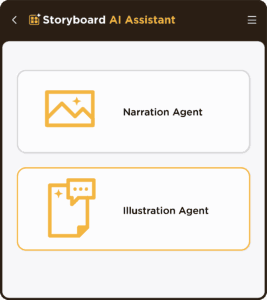
This article focuses on the Illustration Agent and how it helps our team generate, retrieve, and insert visual assets directly into PowerPoint.
What the Illustration Agent Does
The Illustration Agent empowers developers to create AI-generated images, icons, and graphic elements through the Recraft API.
From a development perspective, this tool connects three workflow components:
- A prompt interface where the user describes the visual asset.
- An API process that sends the request and receives the generated output.
- A PowerPoint integration layer that inserts the selected asset into the active slide.
As a result, users no longer need to generate images on one platform, download them, locate files, and manually insert them into PowerPoint. Instead, they can complete the entire process within a single working environment.
Generating Visuals from Prompts
The Illustration Agent enables users to describe the images they want to generate. The prompts can focus on the slide topic, learning objective, scenario, or visual style.
For instance, in a module about online banking, users might generate visuals such as:
- A mobile banking transaction
- A secure digital payment process
- A customer using an e-wallet
- A QR payment illustration
- A banking security concept
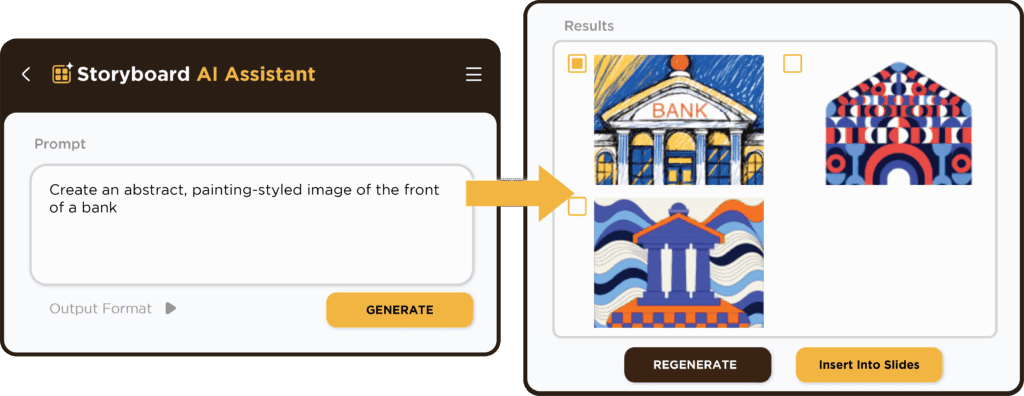
The prompt can also be written in different supported languages. This is useful for regional e-learning projects where developers may work in English, Bahasa Indonesia, Bahasa Malaysia, or other supported languages.
Once the prompt is submitted, the system sends the request through the API and returns the generated visual options for review.
Output Options: PNG and SVG
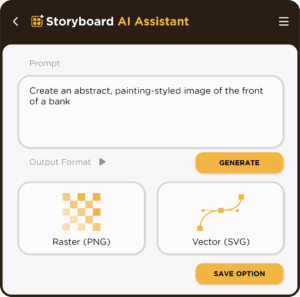
The Illustration Agent supports two output formats: Raster PNG and Vector SVG.
PNG works well for detailed illustrations, slide visuals, and image-based graphics, commonly used when the asset appears as a standard image in PowerPoint.
In contrast, SVG is ideal for icons, flat illustrations, and scalable graphic elements. Since SVG is vector-based, it can be resized without losing quality.
This flexibility allows the development team to generate detailed illustrations as PNG and reusable icons or graphic elements as SVG.
Retrieving Assets from Canva
The Illustration Agent also includes a Canva Assets function.
This function enables the program to connect to the user’s Canva account via a browser login. Once connected, users can retrieve existing assets from Canva, including icons, illustrations, graphics, or brand design elements.
This capability proves beneficial when a project has approved assets stored in Canva. Instead of manually downloading files from Canva and importing them into PowerPoint, users can access these assets through Storyboard AI Assistant and insert them directly into the selected slide.
Direct Insertion into PowerPoint
One of the most practical features of the Illustration Agent is its direct PowerPoint insertion.
Many e-learning storyboards undergo preparation and review in PowerPoint. The Illustration Agent integrates seamlessly with this existing workflow. When a PowerPoint file is open, the program detects the active presentation and selected slide.
If multiple PowerPoint files are open, users can choose which file to work on. This functionality ensures that the asset inserts into the correct presentation.
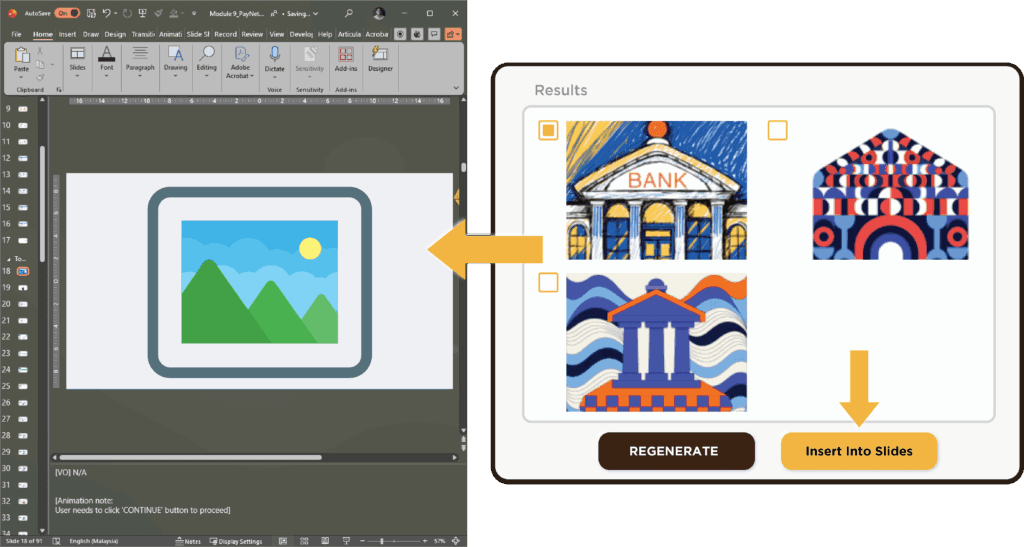
In this setup, the PowerPoint storyboard appears on the left, while Storyboard AI Assistant displays on the right. Any content generated through the AI function or retrieved from Canva can be inserted directly into the active PowerPoint slide.
This integration significantly reduces repetitive manual tasks such as downloading, saving, locating, copying, and pasting assets across different applications.
Why This Helps E-Learning Teams
In e-learning production, small manual tasks can consume significant time when repeated across many slides and modules.
The Illustration Agent simplifies this workflow, making visual development faster and more consistent.
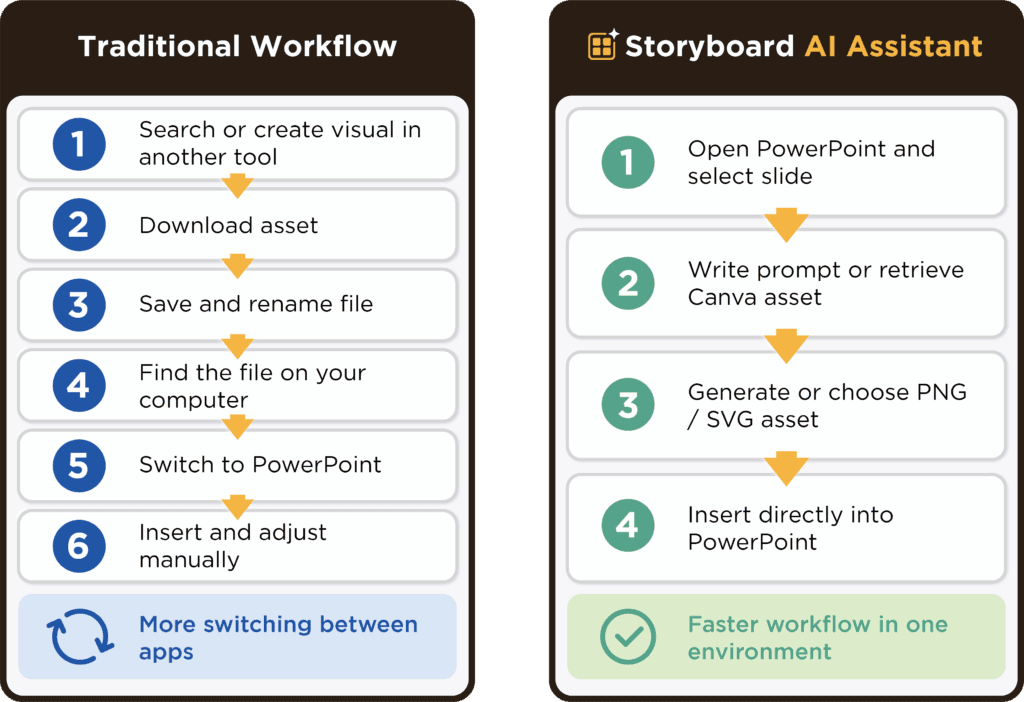
Consequently, it allows developers and designers to focus more on learning quality rather than repetitive production steps.
However, AI does not replace human judgment. The team still determines whether the visual supports the learning objective, matches the audience, and aligns with the overall design direction. Ultimately, the Illustration Agent enhances the efficiency of the production process.
Looking Ahead
Storyboard AI Assistant represents Content Tree’s ongoing effort to enhance e-learning development workflows.
By integrating AI image generation, Recraft API integration, PNG and SVG output, Canva asset retrieval, multilingual prompting, and direct PowerPoint insertion, the Illustration Agent accelerates visual content creation and makes it more practical.
For e-learning teams, the value is clear: they can move from idea to visual asset more quickly and place that asset directly where it is needed—inside the PowerPoint storyboard.
FAQ
What is Storyboard AI Assistant?
Storyboard AI Assistant is an internal platform developed by Content Tree to support e-learning production. It includes the Narration Agent and Illustration Agent.
What does the Illustration Agent do?
The Illustration Agent helps users generate AI images, icons, and graphic elements, then insert them directly into an opened PowerPoint file.
What file formats can it output?
The Illustration Agent can output Raster PNG images and Vector SVG files.
Can it retrieve assets from Canva?
Yes. The Canva Assets function connects to the user’s Canva account through a browser login and allows assets to be retrieved and inserted into PowerPoint.
Can generated assets be inserted directly into PowerPoint?
Yes. The program can detect the opened PowerPoint file and selected slide. Generated assets or Canva assets can then be inserted directly into the active slide.
Can prompts be written in different languages?
Yes. Users can write prompts in different supported languages to generate visual assets.